Running SAFE#
Setting up the base assessment#
Note
SAFE 2.0.0 only supports soilless assessments and soil-bound groundwater assessments. Soil-bound surface water assessments are currently not supported.
Note
SAFE 2.0.0 can only be used for assessments created with GEM 5.5.3. Assessments created with previous GEM versions are not supported.
The base assessment must first be created in GEM. Consult the GEM manual1 for instructions. For soilbound groundwater assessments, the simulations do not need to be (fully) run in GEM. It is sufficient that the input files have been created. This can be achieved by checking the box labelled "Create only input files on Calculate" and clicking the "Calculate" button. For soilless assessments, however, this is not sufficient--the assessment needs to be at least partially run to assure that the directory of the substrate model (SEM) and TOXSWA models are fully populated. Once the substrate model simulation is completed and the TOXSWA model has started, the run may be terminated by closing the command window or pressing Ctrl-Z. Alternatively, the assessment run can be continued to completion if desired.
Setting up a SAFE run#
-
Click the Select GEM assessment directory button and navigate to the directory of the base assessment. This directory can be found in GEM on tab "Status" field "Output directory". For soilless assessments, the base directory contains the subdirectories "WATERMODEL", "SUBSTRATE", and "TOXSWA". For soil-bound groundwater assessments it contains the subdirectory "PEARL". Once selected, the selected directory will be shown in the assessment directory field. If an invalid directory was selected, an error message will appear; if not, the background of the background of the assessment directory field will turn green.
-
Optionally, select a different output directory by clicking the button labelled.
.... If a valid directory was selected, the background of the field will turn green. -
If necessary, select the GEM installation directory. If a valid directory was set the background of the field will turn green.
-
Select the application interval.
-
Set the offset in the interval.
-
Set the application window
-
Optionally, select Create only input files on Calculate
-
Select the number of CPUs to use during the run. Note that number of CPUs used is constrained by the total number of runs. For example, for interval
Quarterly, no more than four CPUs will be used.
Starting the run#
Click Calculate. A SAFE configuration file (SAFE.toml) and a batch script (runSAFE.bat) will be created in the output directory. Unless Create only input files on Calculate was selected, the simulation will start.
A command window will open showing the SAFE configuration and the progress of the runs, with one or more progress bars. The top line indicates the number of a completed assessments. The following progress bars (one for each CPU) indicate the progress of the simulation currently being run. For soilless assessments, the progress bar indicates the progress of the individual fate model simulations (SEM and TOXSWA) part of the assessment.
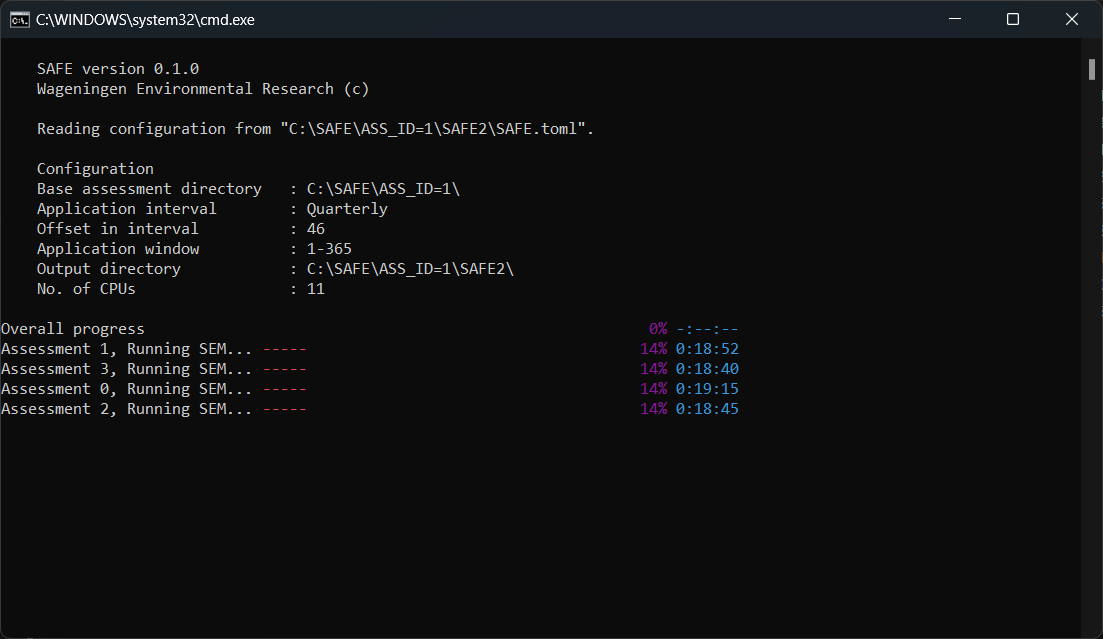
The console window displayed during the SAFE run.
Once the simulations are finished, the generated report can be viewed by clicking the View Report button. The structure of the report is discussed here.