Skip to content

The SAFE user interface#

Open a 'Select Folder' dialog to select the directory of the base assessment. If an invalid directory is selected, an error message will be shown. Path to the directory of the selected base assessment. The type of the selected base assessment: soilless or soil-bound groundwater. Path to the directory where the output of the SAFE run will be stored. By default SAFE chooses a subdirectory `SAFE` in the base assessment directory. The directory can be modified using the `...` button. Path to the directory where the output of the SAFE run will be stored. By default SAFE chooses a subdirectory `SAFE` in the base assessment directory. The directory can be modified using the `...` button. Path to the GEM 5.5.3 installation directory. This directory should automatically be detected. If not, the proper directory can be specified using the ... button. Path to the GEM 5.5.3 installation directory. This directory should automatically be detected. If not, the proper directory can be specified using the ... button. The time interval used to generate application schemes. Possible choices are: Quarterly, Monthly, Biweekly, Weekly, and Daily. Offset within each interval period on which the first application in the scheme occurs. The maximum and default values are determined by the selected interval. Start/end of the application window as day of year (DOY). Start/end of the application window as day of year (DOY). If selected, SAFE will create the run configuration file (SAFE.toml) and a batch file (runSAFE.bat) in the output directory but not run the simulations. The SAFE simulations can be started manually by running the batch file. The number CPUs to use during the simulations, i.e. the number of simulations to run in parallel. Create the SAFE input files and (unless 'Create only input...' is selected) start the run. Display the output report in the default browser. If no report is present, this button will be disabled. Open this manual in the default browser Exit SAFE. Not allowed if a SAFE simulation is running.
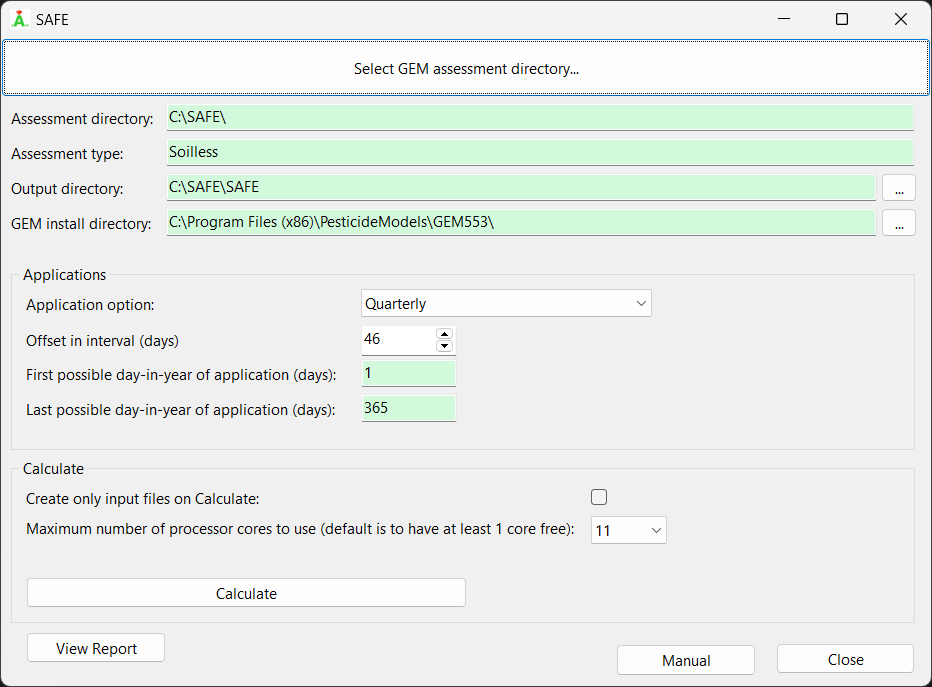
Input fields and buttons#

Select GEM assessment directory: Open a "Select Folder" dialog to select the directory of the base assessment. If an invalid directory is selected, an error message will be shown.

Assessment directory: Path to the directory of the selected base assessment.

Assessment type: The type of the selected base assessment: soilless or soil-bound groundwater.

Output directory: Path to the directory where the output of the SAFE run will be stored. By default SAFE chooses a subdirectory SAFE in the base assessment directory. The directory can be modified using the ... button.

Gem install directory: Path to the GEM 5.5.3 installation directory. This directory should automatically be detected. If not, the proper directory can be specified using the ... button.

Application option: The time interval used to generate application schemes. Possible choices are: Quarterly, Monthly, Biweekly, Weekly, and Daily .

Offset in interval (days): Offset within each interval period on which the first application in the scheme occurs . The maximum and default values are determined by the selected interval .

First/last possible day-in-year of application (days): Start/end of the application window as day of year (DOY) .

Create only input files on Calculate: If selected, SAFE will create the run configuration file (SAFE.toml) and a batch file (runSAFE.bat) in the output directory but not run the simulations. The SAFE simulations can be started manually by running the batch file.

Maximum number of processor cores to use: The number CPUs to use during the simulations, i.e. the number of simulations to run in parallel.

Calculate: Create the SAFE input files and (unless "Create only input..." is selected) start the run.

View report: Display the output report in the default browser. If no report is present, this button will be disabled.

Manual: Open this manual in the default browser.

Close: Exit SAFE. Not allowed if a SAFE simulation is running.